


Samsung Notes
Samsung Electronics Co., Ltd.
I use Samsung Notes as the place where quick thoughts, practical lists, and more carefully prepared documents meet. It is a productivity app from Samsung Electronics Co., Ltd., and although it is closely associated with Galaxy devices, its appeal is easy to understand: it opens quickly, feels comfortable for short entries, and can handle more than plain typed text. I would recommend it to someone who wants one familiar notebook for daily planning, handwritten ideas, scanned material, and documents that may need to be shared.
That recommendation comes with an important qualification. This is not the best choice for every kind of note-taking. People who need a highly structured knowledge base, extensive project databases, or a fully platform-neutral system may prefer another tool. Samsung Notes is strongest when your work already revolves around a Samsung phone or tablet and you value speed over elaborate organization. In that setting, it feels less like an app I have to manage and more like a notebook that is always nearby.
How I use Samsung Notes from the first quick idea to a finished document
My baseline workflow starts with a deliberately simple rule: I do not create a complicated filing system on the first day. I make a small number of useful notes, give each one a clear title, and let the app’s search and organization tools do some of the work later. This matters because a note-taking app can become a second job if every thought requires a decision about folders, labels, colors, and formatting.
For a quick reminder, I open a new note, write the action in plain language, and keep the entry short. For example, instead of writing “things related to the kitchen,” I would write “measure the space beside the refrigerator before buying a shelf.” That style makes the note useful when I find it again. Samsung Notes works particularly well for these small, concrete entries because the distance between opening the app and recording the thought is low.
When I need more room, I treat a note as a working document rather than a permanent archive. A shopping plan, meeting preparation page, travel checklist, or home repair record can begin as rough text and gradually become more organized. I might put the decision I need at the top, add supporting details underneath, and finish with a short list of next actions. This keeps the note practical instead of turning it into a diary of every thought that led there.
Latest News

Uber Eats Under Pressure: What Happens When Delivery Goes Wrong

How QR & Barcode Scanner Adapts to Android and iOS Innovations

Why Waze Navigation & Live Traffic Is Your Essential Travel Companion
CapCut Mastery: Unleash Hidden Features for Pro-Level Editing

How OS Updates Enhance Roblox Adventures

Teacher Simulator: Exam Time Turns Quick Classroom Judgments into a Repetitive Loop
The app also suits mixed input. I can type a heading, add handwriting for a rough diagram, and include visual material when a written explanation would be slower. That combination is one of the reasons I would choose it over a basic text editor. A typed list is better for searching and revising, while handwriting is often better for a floor plan, an arrow between ideas, or a quick sketch during a conversation.
A realistic everyday example is preparing for a repair visit. I would create one note with the problem, the model information I need to show, a list of symptoms, and a space for questions. If I am looking at a physical part, a photo or scanned page can sit beside my written observations. After the visit, I can add the technician’s advice to the same note rather than scattering details across messages, a camera roll, and scraps of paper. The value is not a flashy feature; it is having one context-rich record.
For collaboration, I would use a note when the group needs to work on a document rather than conduct a full project inside a chat. A shared agenda, a list of decisions, or a draft that needs comments can be more readable in a note than in a long message thread. The store summary specifically presents the app as capable of creating and editing documents and collaborating with others, so this is a meaningful part of its role rather than an afterthought.
Gallery
Still, I would not use it as the only place for a complex team workflow without first agreeing on habits. Collaboration works best when everyone knows whether the note is a draft, a decision log, or a task list. Without that discipline, shared editing can make a page confusing. I recommend putting the purpose and current status near the top, then separating unfinished ideas from confirmed information.
The settings I would check before building a large notebook
The first setting-related habit I recommend is checking how notes are organized and displayed before importing years of material. Even a good app becomes frustrating when old entries are difficult to scan. I prefer titles that begin with the subject and then add a useful qualifier, such as “Garden — spring plan” or “Insurance — questions.” This makes the list more informative than titles like “Important” or “New note.”
I also decide early whether a note should remain a quick scratchpad or become a reference document. Scratch notes can stay brief and disposable. Reference notes deserve a clearer structure, consistent headings, and enough context that I will understand them months later. This distinction prevents the common mistake of polishing every tiny reminder while leaving important information buried in an unstructured page.
On a compatible Samsung device, I would pay attention to the writing experience and make sure the tools I actually use are easy to reach. If I regularly switch between typing and handwriting, a few minutes spent arranging my preferred workflow can save repeated taps later. The best setup is not the one with every tool visible; it is the one that keeps the next action obvious.
I would also review synchronization and access behavior before trusting the app with important records. Samsung Notes can be central to a personal workflow, but a note is only useful when it is available where I expect it to be. I would test a harmless sample note across the devices I use, confirm that edits appear as expected, and avoid assuming that every platform will offer exactly the same experience. This is a small precaution, but it is much better than discovering a device-bound limitation after losing access to a needed reference.
Another useful check is export and sharing. I like to know how a document will look when it leaves the app, especially if I am sending instructions to someone who does not use Samsung Notes. A page that looks tidy inside the editor may need a quick review after conversion or sharing. Before distributing a long document, I would send a test version to myself and inspect headings, handwriting, images, and page breaks.
Privacy is also a practical setting question, even when the app feels personal. I avoid putting unrelated sensitive details into a general note simply because it is convenient. For account information, identity documents, or private records, I consider whether this is the right app and whether the device itself is protected. Samsung Notes is useful for storing context, but convenience should not replace careful judgment about what belongs in any mobile notebook.
The app is free and carries an Everyone age rating, which makes it approachable for a broad range of users. That does not mean every workflow will feel equally comfortable. A child making illustrated school notes, a student outlining an essay, and an adult tracking household tasks may all use the same app differently. The important part is matching the structure to the job rather than expecting one notebook style to suit everyone.
Faster patterns that make daily use feel lighter
Experienced use is less about discovering a secret button and more about removing repeated decisions. I keep recurring note types recognizable. A weekly planning note, for instance, can use the same order every time: appointments, errands, priorities, waiting items, and a short review. When the structure stays stable, I spend less energy deciding where to put information and more energy acting on it.
I also separate capture from processing. When an idea arrives while I am busy, I record only enough to recover the meaning later. I do not stop to format it perfectly. At a quieter moment, I rename the note, move key information into a more permanent document, or delete it if it no longer matters. This habit prevents the app from becoming slow in practice because every quick thought is forced through a full filing process.
Handwriting deserves a similar two-stage approach. I use it when speed, shape, or spatial thinking matters, then add typed words when future search or clarity matters more. A handwritten sketch of a room can be excellent during planning, but a typed list of measurements makes the same note more useful later. Combining both forms is more effective than insisting that every note be entirely handwritten or entirely typed.
For meetings or conversations, I put the purpose at the top before the discussion begins. I then record decisions as complete statements rather than vague fragments. “Choose the blue option” is less useful than “Use the blue option for the hallway; confirm the delivery detail.” This is not a special Samsung Notes feature, but the app’s flexible page format makes this kind of live document easy to maintain.
Another pattern is using one note as a temporary control panel for a short project. I might gather links or references outside the note, then keep the decisions, questions, and next actions together in Samsung Notes. Once the project ends, I either turn the page into a record or remove it. This avoids filling the notebook with half-finished project pages that look active long after the work is done.
Search becomes more valuable when I write for my future self. I include the names, places, product models, or topics I am likely to remember later, rather than relying on a clever title alone. If a note contains a handwritten detail that I may need to find again, I add a small typed summary. That extra line is a practical compromise between the natural speed of handwriting and the retrieval advantages of typed text.
When collaborating, I use a clear handoff pattern: state the decision, list open questions, and identify the person or group responsible for the next step. A shared note is much easier to use when it tells readers what changed and what still needs attention. Without that structure, collaboration can become a pile of edits where everyone sees information but nobody knows what to do next.
Where the app is strong, and where its limits become visible
The biggest strength is focus. Samsung Notes does not force me to turn every thought into a project. It can be a tiny reminder, a handwritten page, or a more complete document without making the transition feel unnatural. That range is especially useful on a phone, where I may begin with one sentence and later expand the idea on a larger screen.
Its other important advantage is the blend of document types. A conventional notes app may handle typed text cleanly but feel awkward for sketches and visual references. A drawing app may be excellent with a pen but poor for searchable plans and ordinary lists. Samsung Notes sits between those approaches. I would choose it when the boundary between writing, drawing, and collecting material is part of the task.
There is also a practical trust signal in its reach. The app has a 4.8 average from around fourteen million ratings and has passed one billion installs. Those figures do not prove that it will suit every person, but they do show that it has become a familiar part of many Android users’ routines. It was released on August 15, 2016, so this is an established productivity tool rather than a new experiment.
The limitations appear when I want a more elaborate information system. If my goal is to connect many small ideas through backlinks, build database-style views, or create a deeply customized research workspace, I would look beyond Samsung Notes. It can hold the material, but it is not the tool I would pick for a large personal knowledge graph.
I would also be cautious about using it as a full replacement for a task manager. A checklist inside a note is handy for a shopping trip or a one-off project. It is less suitable when tasks need recurring schedules, detailed status rules, or a dedicated overview of deadlines. In that situation, a task-focused app is usually clearer, while Samsung Notes can hold the background information that explains the work.
Compared with a basic phone memo app, Samsung Notes offers a richer workspace and a better fit for mixed media. Compared with a cloud-first, cross-platform notebook, it may be less attractive to someone who moves constantly between different operating systems or wants identical behavior everywhere. Compared with a dedicated document editor, it is quicker for personal capture but not necessarily the best environment for formal, heavily formatted files.
That trade-off should guide the download decision. I think Samsung Notes is a strong choice for Galaxy users, students who mix handwriting with typed study material, households organizing practical information, and anyone who wants a flexible notebook without paying for the app. I would skip it if my main requirement is platform independence, advanced database organization, or a strict task-management system.
My verdict after making it part of a repeatable routine
My honest view is that Samsung Notes succeeds because it covers ordinary situations unusually well. I can capture a thought, develop it into a plan, add a sketch or supporting material, and share the finished document without changing tools every few minutes. That continuity is more valuable than a long feature list when the goal is simply to remember, prepare, and follow through.
The best results come from a modest system: use descriptive titles, keep temporary notes temporary, add typed summaries to important handwriting, test synchronization across the devices you rely on, and review shared documents before sending them onward. These habits turn a convenient notebook into a dependable personal workspace.
I would not call it the universal answer for productivity. Its organization ceiling becomes noticeable for researchers and power users who want elaborate connections, and its task handling is better for simple lists than for complex schedules. But those limits are easy to understand, and they do not undermine its core purpose.
For me, the deciding question is whether I want a flexible Samsung-centered notebook or a specialized system built around databases, tasks, or broad platform support. If the first description fits, I would comfortably recommend Samsung Notes. It is free, accessible to Everyone, and developed by Samsung Electronics Co., Ltd.; more importantly, it rewards a calm, repeatable workflow instead of demanding constant maintenance. Used that way, it becomes a practical place for the notes I need today and the documents I may need to understand later.
FAQs for Samsung Notes
What features does Samsung Notes offer?
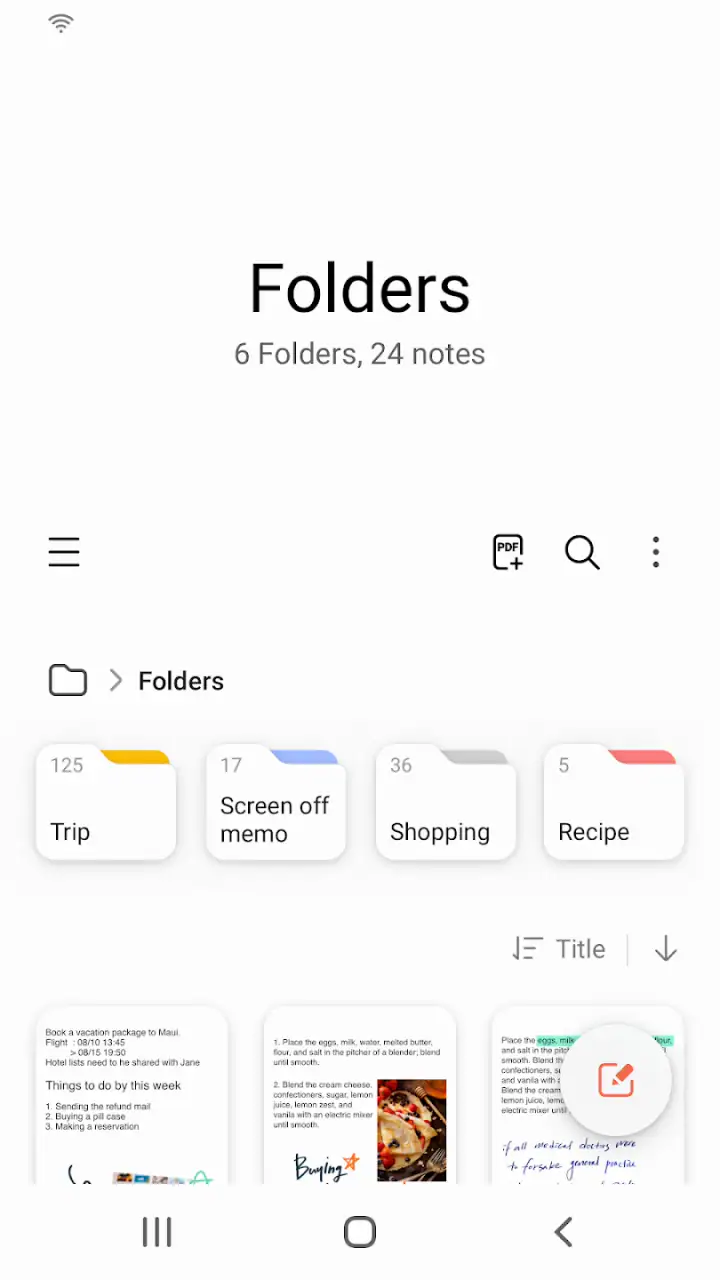
Samsung Notes is a versatile app that allows users to create notes with text, images, and voice recordings. It includes features such as drawing tools with a variety of pen and brush types, the ability to import PDFs for annotation, and synchronization across multiple Samsung devices. Users can also organize notes into folders for easy access.
Is Samsung Notes available on all Android and iOS devices?
Samsung Notes is primarily designed for Samsung devices and is pre-installed on many of them. While it is available for download on the Google Play Store, functionality may be limited on non-Samsung devices. As of now, it is not available on iOS devices, focusing instead on the Samsung ecosystem.
How can I back up my notes in Samsung Notes?
To ensure your notes are safe, Samsung Notes offers synchronization with your Samsung account. You can back up your notes to Samsung Cloud, allowing you to restore them on any compatible device. Additionally, users can export notes as PDF files or text documents for further backup options.
Can I collaborate with others using Samsung Notes?
Currently, Samsung Notes does not support real-time collaboration like some other note-taking apps. However, you can share notes by exporting them in various formats such as PDF or image files, and then sharing them through email or messaging apps, enabling indirect collaboration.
Does Samsung Notes support handwriting recognition?
Yes, Samsung Notes includes handwriting recognition features. This allows users to convert handwritten notes into text, making it easier to search and organize information. The app supports various languages, enhancing its utility for users who prefer writing with a stylus or S Pen.
Pros
- Intuitive interface for easy note-taking.
- Seamlessly syncs across multiple devices.
- Supports handwriting and text input.
- Rich editing features for customization.
- Integrates well with other Samsung apps.
Cons
- Limited features on non-Samsung devices.
- Some features require a Samsung account.
- Occasional sync issues reported.
- Limited export formats available.
- No collaboration features for team use.


